
nnok mobile guide
nnok mobile usage — Difference between Browser, PWA, and APK
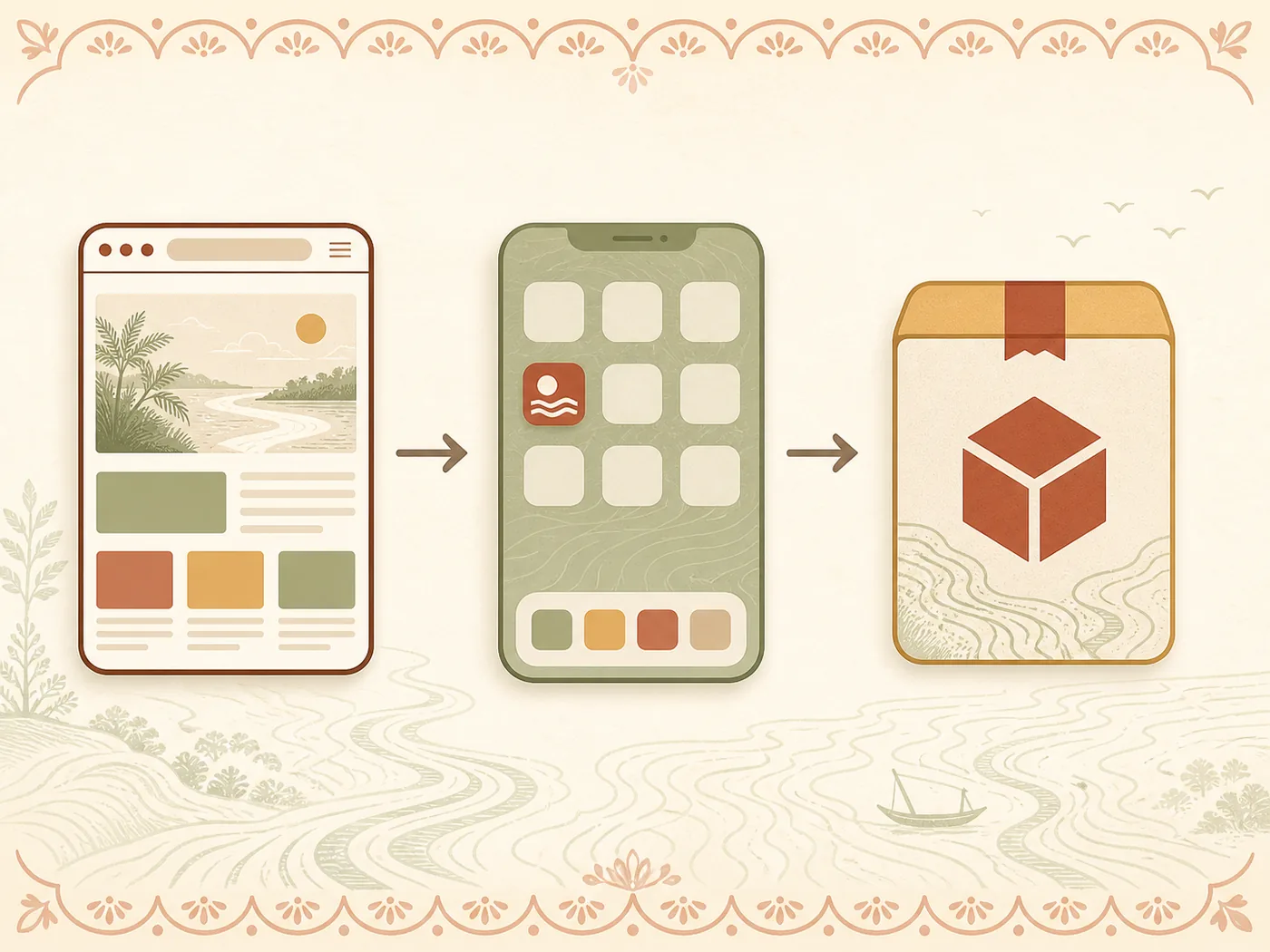
nnok mobile does not refer to just one app. A responsive website in the browser, a PWA added to the home screen, and an Android install package APK—each has different storage, update, session, and troubleshooting. This page is organized according to the device regarding what to see on a small screen and what steps to take if there are page or session issues.
How mobile website, PWA, and APK differ
Identify the form by looking at the current screen's browser bar, home-screen icon, install prompt, and device app list. Even if the names are the same, the delivery forms may differ.
| Form | How to open | Storage/update | Which device |
|---|---|---|---|
| Mobile website | Browser tab and web address | Browser cache/cookie; load from page server | Android, iPhone, and desktop browser |
| PWA | Add to Home Screen from the browser | Web storage/service worker; browser-dependent update | Supported Android/iPhone browsers |
| APK | Android package install | App storage; package/version and permission are relevant | Android; not iPhone/iPad |
This site does not publish APK files, app addresses, or versions. It explains the screen and device logic of the three forms.
Correct path on Android and iPhone
Android
When opening a page in the browser, check the address bar, tab state, and site permissions. If it's a PWA, the entry may appear separately in the app list created from the Add to Home Screen or install prompt in the browser menu. In the case of APK, the package file, install permission, app storage, and version are important, but do not assume any file if there is no visible source on the screen.
iPhone and iPad
iOS/iPadOS does not run APK. Only the browser website or supported Add to Home Screen web path is relevant. When opening a home-screen entry, it may be browser engine-based; it may be associated with cache, website data, and session browser settings. Do not apply Android package instructions on iPhone.
Small screen
Open the menu drawer to see the category heading, then read the title/status and finally the action area. If the table scrolls horizontally, use the scrollbar or swipe area below; do not obscure control by zooming in. After opening the keyboard in the login form, the submit or error message may move down—scroll to see the visible result.
Steps to read information on a slow network
The text, image, live panel, and status of the page may not load at the same time. Before resending the action after seeing half the screen, distinguish the signs below.
| Signs | Possible branch | First test |
|---|---|---|
| Text is present, image is not | Media loading | Can the main heading/status be read? |
| Menu is present, content is blank | Page script/cache | Reload once, close other tab |
| Old status remains | Stale cache or reconnect | Timestamp and activity/history |
| OTP page has changed | App switching/session | One tab, avoid back navigation |
| Button response not available | request pending or disconnected | do not repeat without checking current status |
five steps if mobile page does not open
- identify the correct screenWrite which Browser website, PWA not installed Android package you have opened.
- Check connection and device timeChange Wi-Fi/mobile data to match signal and automatic date/time.
- Keep a sessionClose multiple tabs or duplicate windows of the same form.
- Take a light refreshReload once; do not refresh or submit repeatedly.
- Note the current stateWrite down the Error text, page heading, timestamp, and last successful step Help decision tree Open.
Clearing cache or resetting app data may lose saved session. So do not take this step without ensuring password/recovery access.
session when changing Browser, SMS, and app
When taking OTP from browser to SMS or email app, the previous page may reload due to memory pressure. Note masked contact and resend timer before viewing the code. Use recent apps to return; do not start the same form again from a new tab. If session expired message appears, take a new session from the visible Login/Register branch instead of sending the old code.
PWA and browser can share the same website data or keep separate sessions based on device/browser. Remember which entry you started with. If there is a login problem branch of session error, Register OTP if Steps for OTP verification See.
Questions about nnok Mobile
Is PWA APK?
No. PWA is a web technology-based home-screen experience; APK is an Android package. Storage, update, and uninstall paths are different.
Does APK run on iPhone?
No. iPhone/iPad does not install APK. Check the browser website or supported Add to Home Screen path.
Should I submit if the page partially loads?
No. Check if the heading, current status, and timestamp are complete; do not repeat the same action without checking activity/history.
Will everything be fine if I clear the cache?
Not always. Clearing cache can remove session and saved state. First, check network, single tab, time, and visible errors.
Why does the page disappear when changing the app to take OTP?
The browser page may reload due to low memory or expired session. Keep one tab, return with recent apps, and check the current timer.
What should I check if storage is low?
Check device free space, browser site data, and installed package size separately. Use clear categories in device settings without deleting unknown files.
Next steps from mobile
For new form Preparation for registration, to return login and recovery, and for unresolved error nnok assistance according to questions See.